This post describes some easy, free ways to take screenshots on desktop and laptop computers.
Browser Method
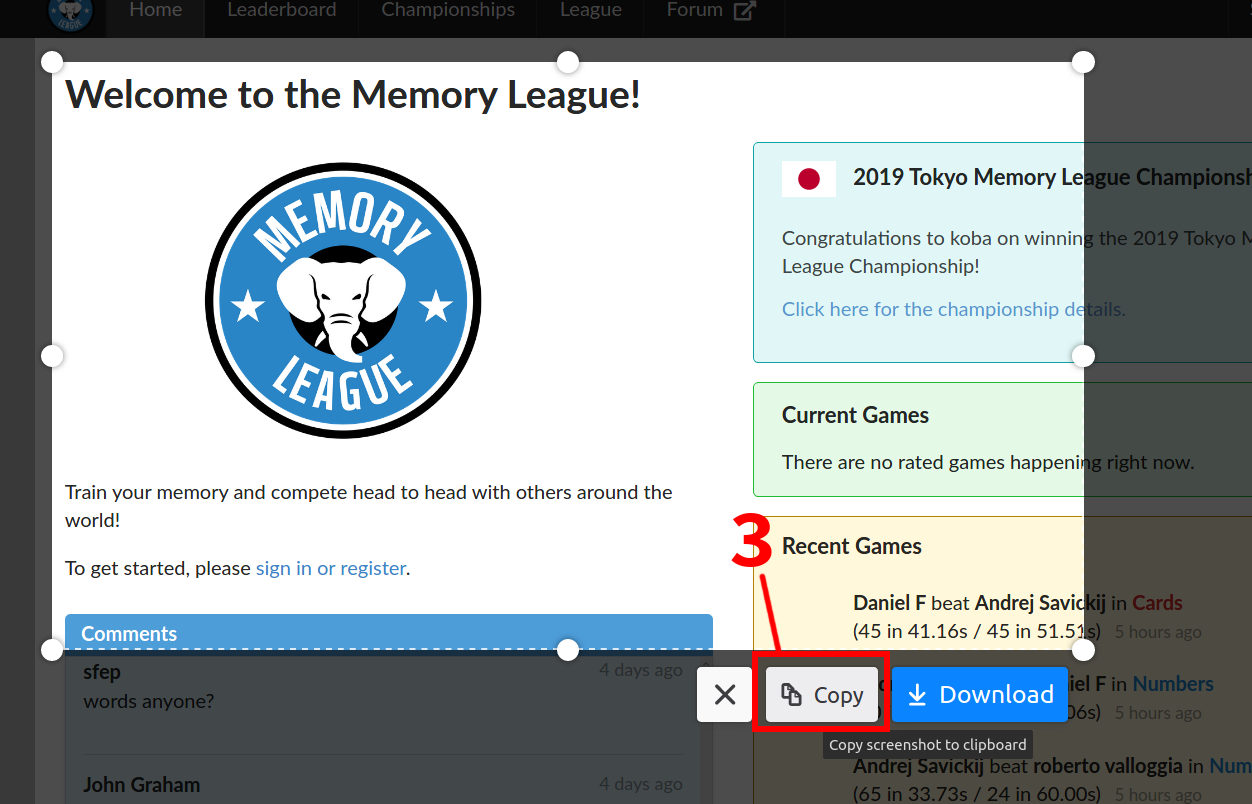
The Firefox browser has a built-in screenshot tool, and it works on Windows, Mac, and Linux. You can right-click on any webpage in Firefox and then on “Take a screenshot”. There’s also a menu option that is described on the page and screenshot below. It’s a great way to take screenshots of your Memory League games and post them in the forum.
You can then click-and-drag to select an area. If you click “Copy” you can then paste the image directly in a forum post with ctrl+c (Windows or Linux) or command+v (Mac).
An advantage of using Firefox for taking screenshots of webpages is that it can capture areas that are larger than the viewing area. It also copies them directly to the clipboard so that they can be pasted into the forum with ctrl+v (or command+v on Mac).
You can also take screenshots on all the game machines Switch, Xbox, PS. I do this in games and then send the pictures to my Ipad/Phone so I can make memory palaces from the games.