This is a page in the faqs section.
There are two editing modes in the forum. One is an easy “visual” mode that works like a word processor, where you see the formatting in the letters that you type.
The other editing mode is a more advanced “markdown” mode where you type special symbols to indicate formatting.
You can switch between the easy and advanced editing modes with this button in the editor toolbar:

The instructions below include explanations on how to use the more advanced “markdown” formatting mode.
If you don’t know markdown, you can use the simpler visual mode or use the editor buttons to insert the correct formatting. They work like the editor buttons in a word processor or email client.
Quoting Other Users
You can quote a user by using the buttons or by highlighting text in someone’s post and then clicking the “Quote” button that appears. You can use the feature multiple times for multiple quotes.
Images
You can upload images to posts by clicking the image icon in the editor or pasting the URL of an image into your post. You can also paste images into the editor directly from your clipboard.
To manually format images, use this syntax:

which produces this output:

Bold and Italic Text
You can use the editor buttons to make text bold or italic, or manually format it.
This markup:
_italic_
*italic*
**bold**
produces this output:
italic
italic
bold
Emojis
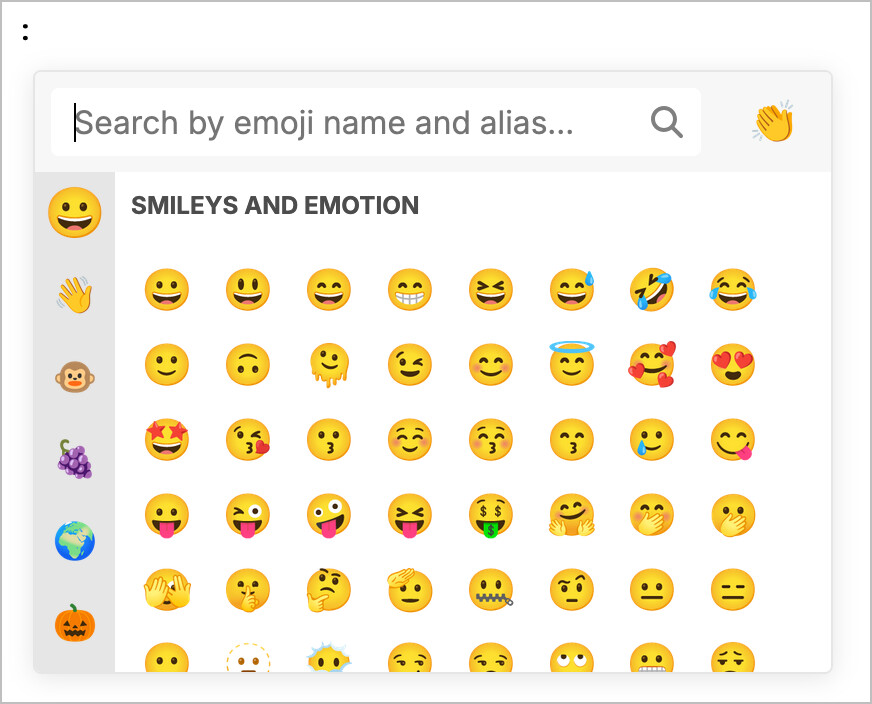
There are many emojis that you can use. Click the editor icon to see them all, or type a colon (:) to have the editor auto-complete.
Here’s an example of the search form that appears when you use the emoji editior button or type a colon character in the editor:
Highlighted Text
To highlight text with a yellow highlighter, use the <mark> tag like this:
<mark>This text will be highlighted.</mark>
Marking Inserted and Deleted Text
To indicate deleted or inserted text during edits you can use these tags:
<del>strikethough</del>
<ins>addition</ins>
which produce this output:
strikethough
addition
Lists
You can use the editor buttons to add lists.
If adding them manually, you can use dashes or asterisks for bullet points:
- list item
- list item
example output:
- list item
- list item
For numbered lists, you can use any number, and the site will increment the items for you:
1. list item
1. list item
1. list item
produces:
- list item
- list item
- list item
Lists can be nested with indentation, and the list types can be mixed:
- top level item
  - nested list
    1. another nested list
    1. numbers work here too
- top level item
produces this:
- top level item
- nested list
- another nested list
- numbers work here too
- nested list
- top level item
Headers
Headers can be indicated by hash signs:
# Header 1
## Header 2
### Header 3
example output:
Header 1
Header 2
Header 3
Blockquote
As mentioned above, to quote a user, highlight some text in their post and click the “Quote” button that appears. This can be done multiple times if you want to quote multiple bits of text.
If you want to indicate that something is a quote from another source, you can also mark something as a quote by prefixing the lines with a greater-than sign like this:
> This is a blockquote
producing this output:
This is a blockquote
Links
To create a link, use the link icon in the editor or format it manually like this:
[link text](http://example.com/)
which produces this output:
Tables
Use the “pipe” symbol to designate columns. There should be the same number of pipes on each line. The second row should contain two dashes in each “cell” to separate the table header from the table body.
This markup:
| Column 1 | Column 2 |
|--|--|
| row 1 column 1 | row 1 column 2 |
| row 2 column 1 | row 2 column 2 |
produces this table:
| Column 1 | Column 2 |
|---|---|
| row 1 column 1 | row 1 column 2 |
| row 2 column 1 | row 2 column 2 |
If you don’t want to format tables by hand, try this markdown table generator. There are also plugins for vim and vscode.
Blur Spoilers and Hide Text
If you want to hide some information to avoid revealing spoilers, there is a button on the editor named “Blur Spoiler” that will add [spoiler] tags. Here’s an example:
[spoiler]This text will be blurred until clicked[/spoiler]
This text will be blurred until clicked
To hide text in an expandable area, use the “Hide details” button:

Dates
You can insert dates with the editor toolbar that will allow people to convert the dates to multiple timezones when hovered over. The output looks like this: 2019-07-26T07:00:00Z
Math
The forum also supports mathjax if you wrap dollar signs around the math. (cheatsheet)
Examples:
Single dollar signs like this will render the equation on one line:
Inline output: $ write your LaTeX here $
Inline output: um_{i=0}^n i^2 = rac{(n^2+n)(2n+1)}{6}
For “block” output (on a new line), wrap the equation in double dollar signs like this:
Block output:
$$
write your LaTeX here
$$
Block output:
You can also change the font to monospace by enclosing text with triple backticks (optionally specifying a programming language, or text for plain text).
This formatting:
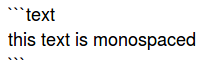
produces this output:
this text is monospaced
(The word text there mainly just turns off syntax highlighting – otherwise it might try to detect a programming language and add colors to the text.)
Code
For programming languages, you can specify the language after the first triple-backticks.
Example – this markup:
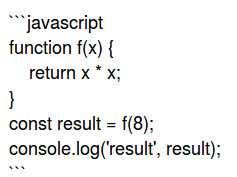
produces this syntax-highlighted output:
function f(x) {
    return x * x;
}
const result = f(8);
console.log('result', result);
To format computer code inline, use backticks:
This will be formatted as code: `(function (x) { console.log(x) }(7))`.
will produce:
This will be formatted as code: (function (x) { console.log(x) }(7)).
You can also indent lines with four spaces to indicate that the lines should be formatted as code. This won’t provide any syntax highlighting though.
Diagrams
Mermaid
Mermaid can be used to draw diagrams in the forum. For an example of how to draw a mindmap, see Mind map software-generated - #14 by Josh
mindmap
root((Python))
	Lists
		append
		clear
		copy
		count
	Dictionaries
		clear
		copy
		fromkeys
	Strings
		capitalize
		casefold
		center
Graphviz
Graphviz syntax can also be used in the forum. See this post for details: Mind map software-generated - #4 by Josh

